
Unified Base
BetaOne tabbed window that runs your projects — whatever language each one is written in, and whichever operating system it was written for.
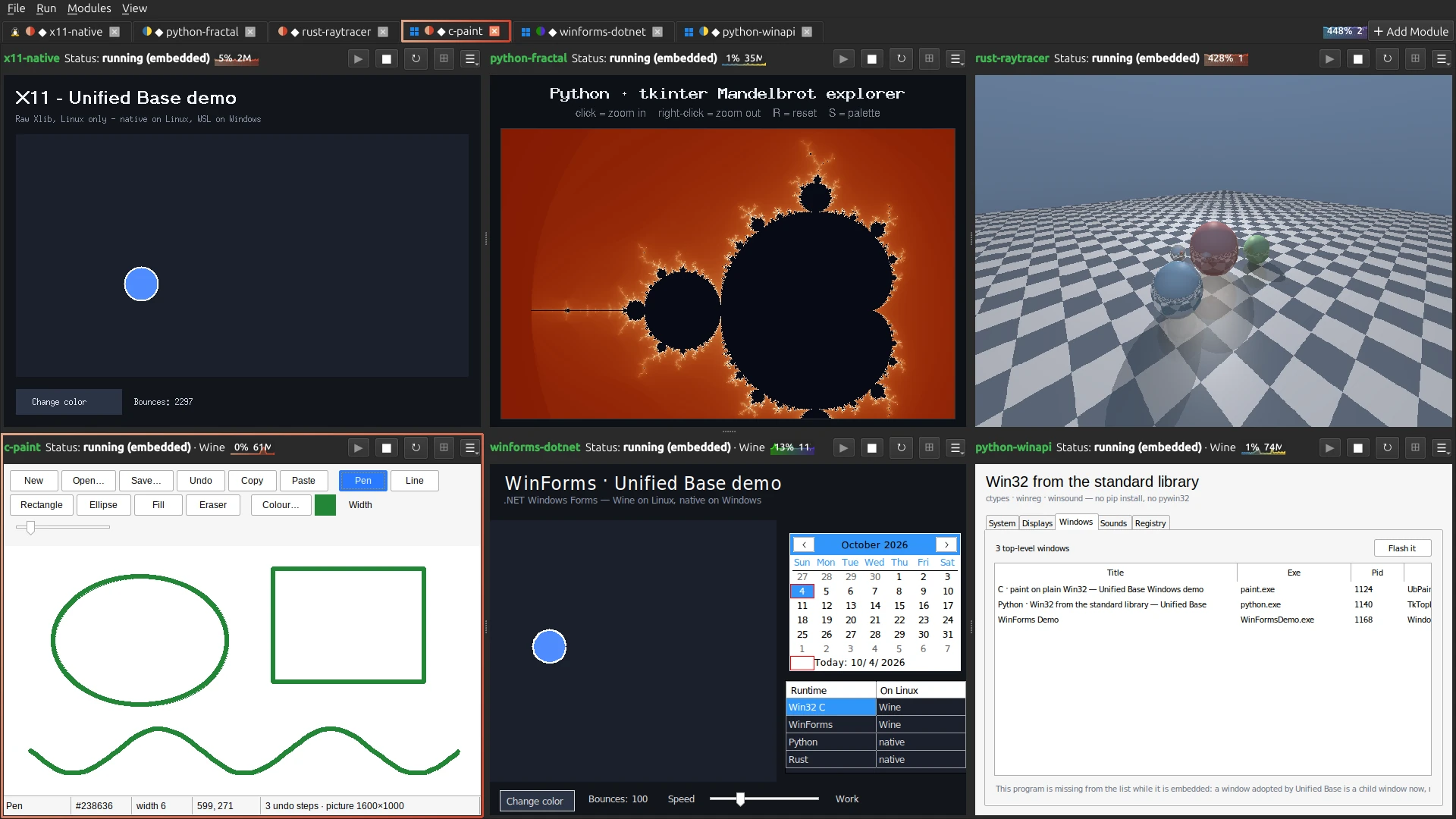
Anyone with more than a couple of side projects knows the shape of the problem: nine folders, nine ways to start the thing, nine terminals, and a window per project scattered across the desktop. Unified Base takes a folder, works out what it is, sets up its environment the way a developer would, starts it, and pulls its window into a tab.
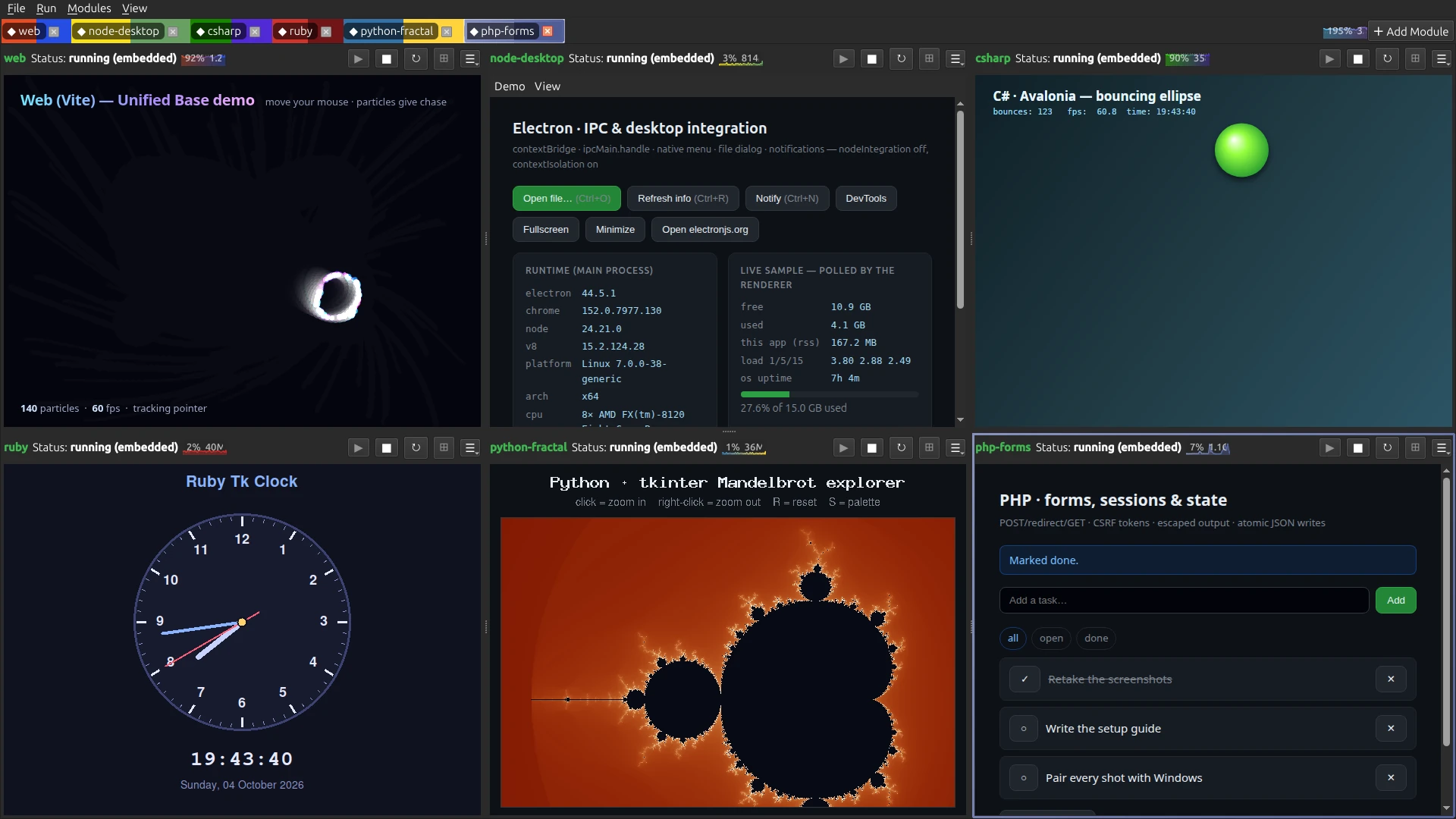
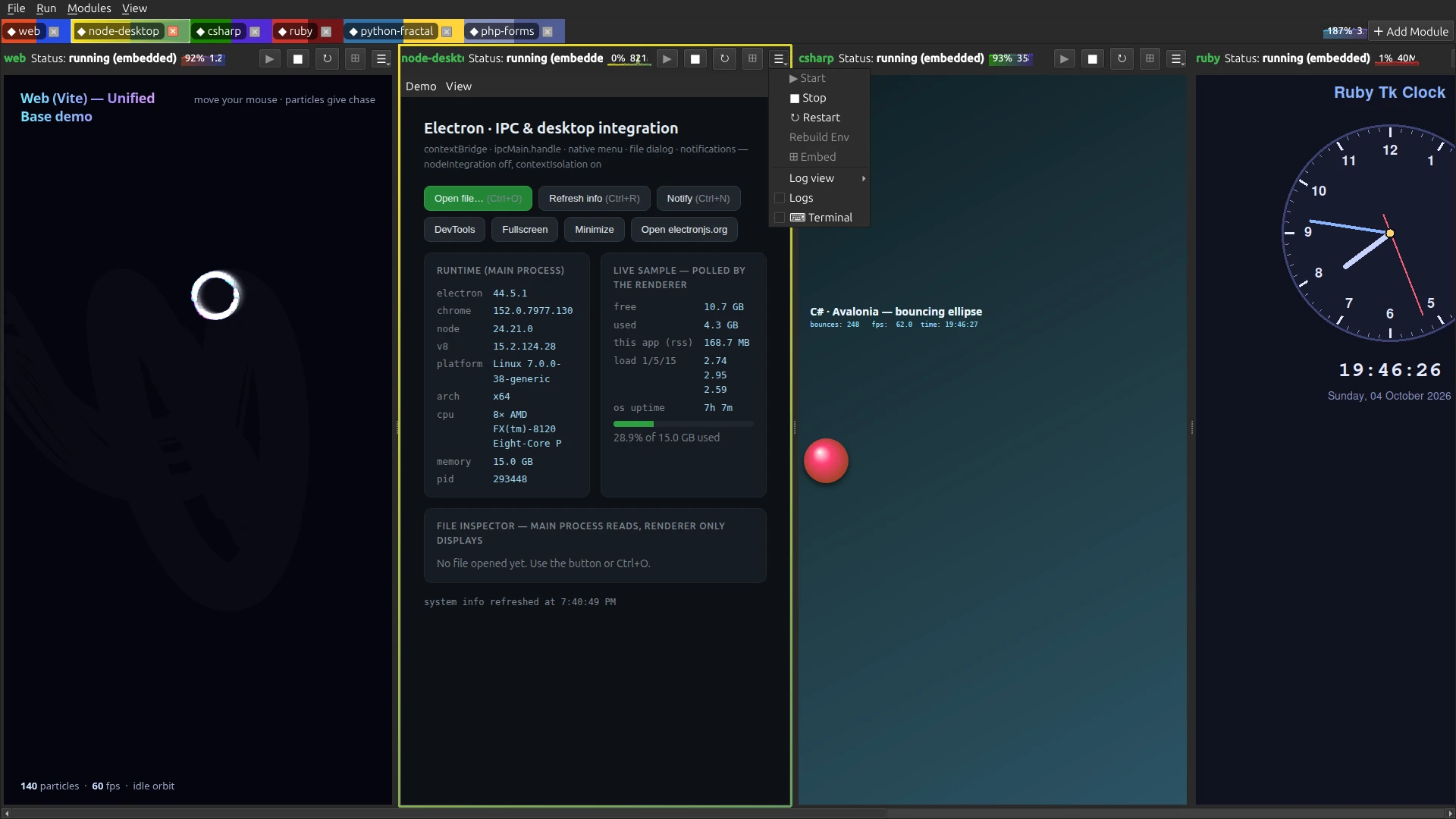
Embedding happens at the window level — X11 reparenting on Linux, SetParent on Windows — which is the reason it does not care what language a module is written in. A Rust binary, a Ruby Tk script, a C# Avalonia app and a Vite dev server all end up as panes in the same window.
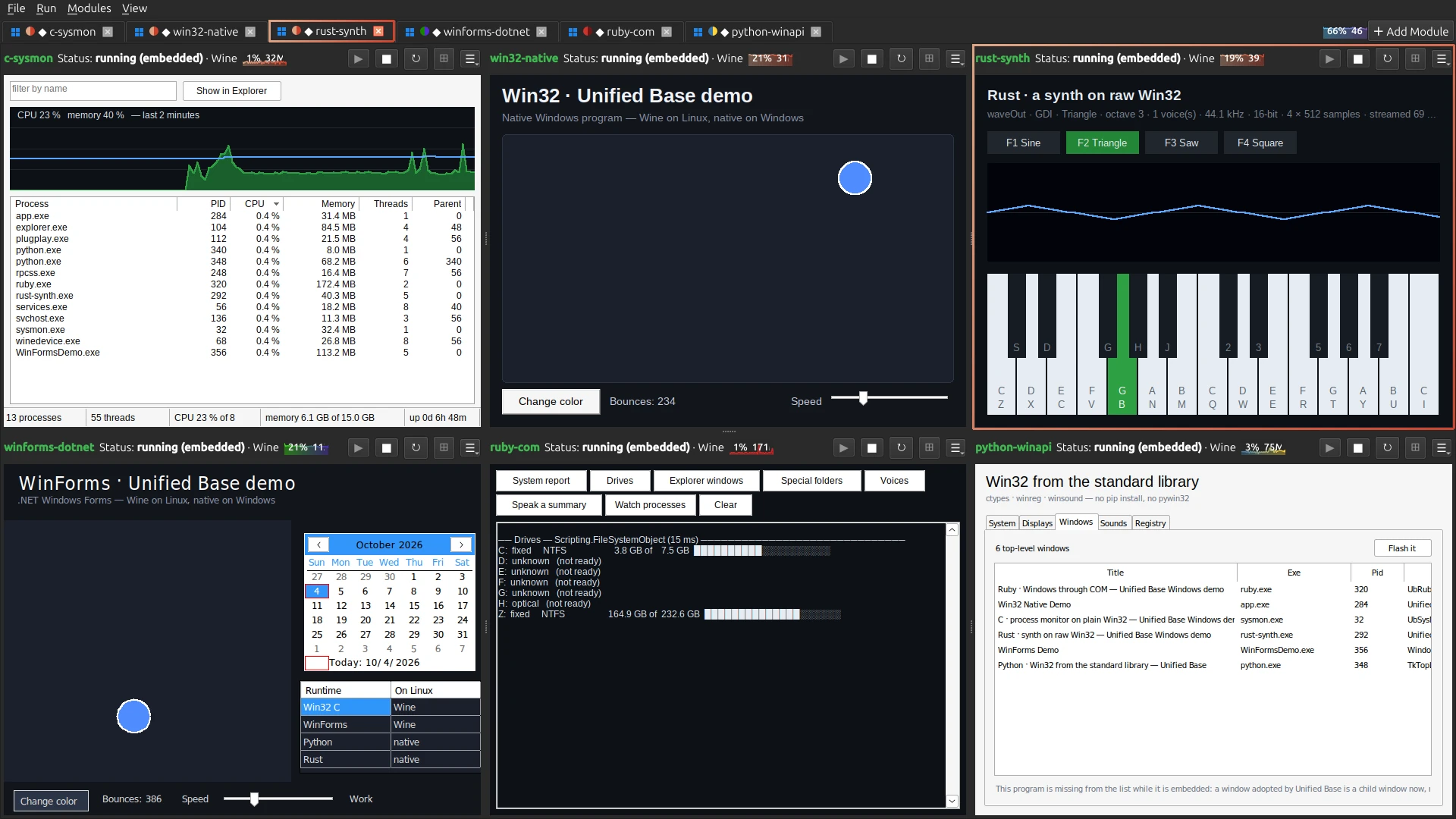
And each operating system runs the other’s programs. On Linux a Windows-only program runs through Wine and still lands in a pane; on Windows a Linux one runs inside WSL. A small mark on the tab — Windows’ four panes or a Tux — tells you which ones are crossing over.
Download for WindowsDownload for Linux Read the setup guide →
Runtimes it sets up for you
- Python — venv and pip, or uv if you have it. Dependencies from requirements files, pyproject (PEP 621 or poetry), .in files, and a recursive scan of the actual imports.
- Node.js and Electron — npm install, then npm start, an npm script, or electron directly.
- Native binaries — Cargo, Go, Make or CMake, built and launched; or a prebuilt executable run as-is.
- Java — Maven or Gradle, then the jar.
- Web apps — npm install, the dev server, and a browser window in app mode pointed at whatever URL it announced.
- C# / .NET — dotnet build, dotnet run.
- Ruby — bundle install where there is a Gemfile.
- PHP — composer install, then the script or the built-in server.
- Docker — build the image, run the container.
- Anything else — give it a setup command and a run command of your own.
- When a module’s language is missing or too old, its first start downloads a current one for you — Node.js, .NET, Java and Maven, Rust, and on Windows Ruby and PHP too — pinned, checksum-checked, no password or admin prompt.
- The few tools that still come from the system — PHP, Ruby and Docker on Linux; Docker Desktop, Go, CMake and make on Windows — get an Install button in the tab: your package manager or winget, behind the system’s own prompt.
Windows programs on Linux, Linux programs on Windows
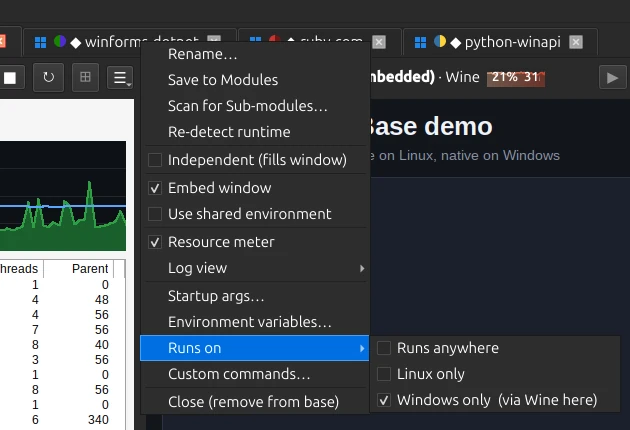
- Every module records what it needs: anywhere, Linux only, or Windows only. Detection goes by hard evidence — an executable’s own header, a WinForms or WPF project, an import only Windows has — and right-click ▸ Runs on overrides it.
- The setting travels with the module, so one saved on one machine does the right thing when it is opened on the other.
- On Linux, Windows programs run through Wine, and Wine draws real X11 windows, so they embed exactly like Linux ones. Builds still happen natively: a Windows-only .NET app is published for Windows by the Linux SDK, a Windows-only Rust crate is cross-compiled, and Wine runs the result.
- A Windows-only Python, Java or Ruby program runs on that language’s official Windows build, which the first start installs into the Wine prefix — pinned downloads, each checked against its SHA-256 before it runs.
- On Windows, Linux programs run inside WSL: setup, launch and the command bar all happen in the distro. With an X server such as VcXsrv running, their windows embed into panes like any other.
- Wine downloads itself on Linux. WSL needs a one-time install with admin rights, which Set Up Linux Programs on the Start menu walks through. Unified Base itself runs as you.
Real embedding, not a launcher
- Modules are pulled into their tab as real windows, so they behave exactly as they would on their own.
- The host self-heals: when the window manager grabs a freshly mapped window back, or Qt recreates the tab’s native window, the child is put back under it.
- If a module never produces an embeddable window, its tab becomes a control panel — logs and buttons — and the module runs in its own window rather than failing.
Arranging the panes
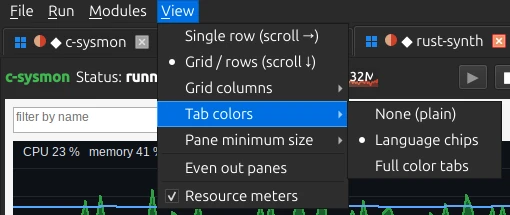
- A single resizable row with draggable handles, or a grid that wraps into rows with a fixed or auto-fit column count.
- Panes have a minimum size and the view scrolls, so loading a sixth module does not squash the other five into slivers.
- A pane’s header shrinks with it: full buttons, then symbols, then a single ☰ menu holding the rest.
- Even out panes puts them back to equal widths in one click.
- Any module can go Independent and take the whole window, with the tab bar still there to switch back.
Living with it
- Per tab: Start, Stop, Restart, Rebuild Env and Embed, and a live CPU and memory meter in the header. The one at the top right adds them all up.
- Logs three ways: in the pane, docked beside the module, or in a window of their own.
- A command bar under each module runs one-off commands in its folder and its environment — pip install, npm i, gem install — and a real terminal opens beside it when you need one.
- A Run menu with the keys you would expect: F5 to start, Shift+F5 to stop, Ctrl+R to restart, and Ctrl+1 to 9 to jump straight to a module.
- Rebuild Env wipes that module’s environment — venv, node_modules, target, build — and sets it up again from scratch.
- Scan a folder to bulk-add every subfolder it recognises; scan a module for sub-modules to open its other entry points as their own tabs.
- Save modules to a library, save the whole set of tabs as a named layout, and reload either in one click.
- Per-module environment variables, startup arguments, a shared venv for the heavy dependencies, colour-coded tabs, and rename by double-click.
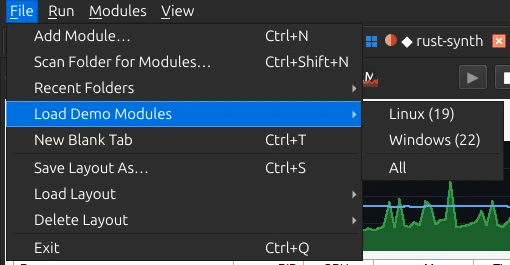
- Forty-one demo programs come with it, covering every runtime on both operating systems, under File ▸ Load Demo Modules.
Screenshots
The same app on both platforms, Linux on the left. Click any shot to open it full size.
 Linux
Linux 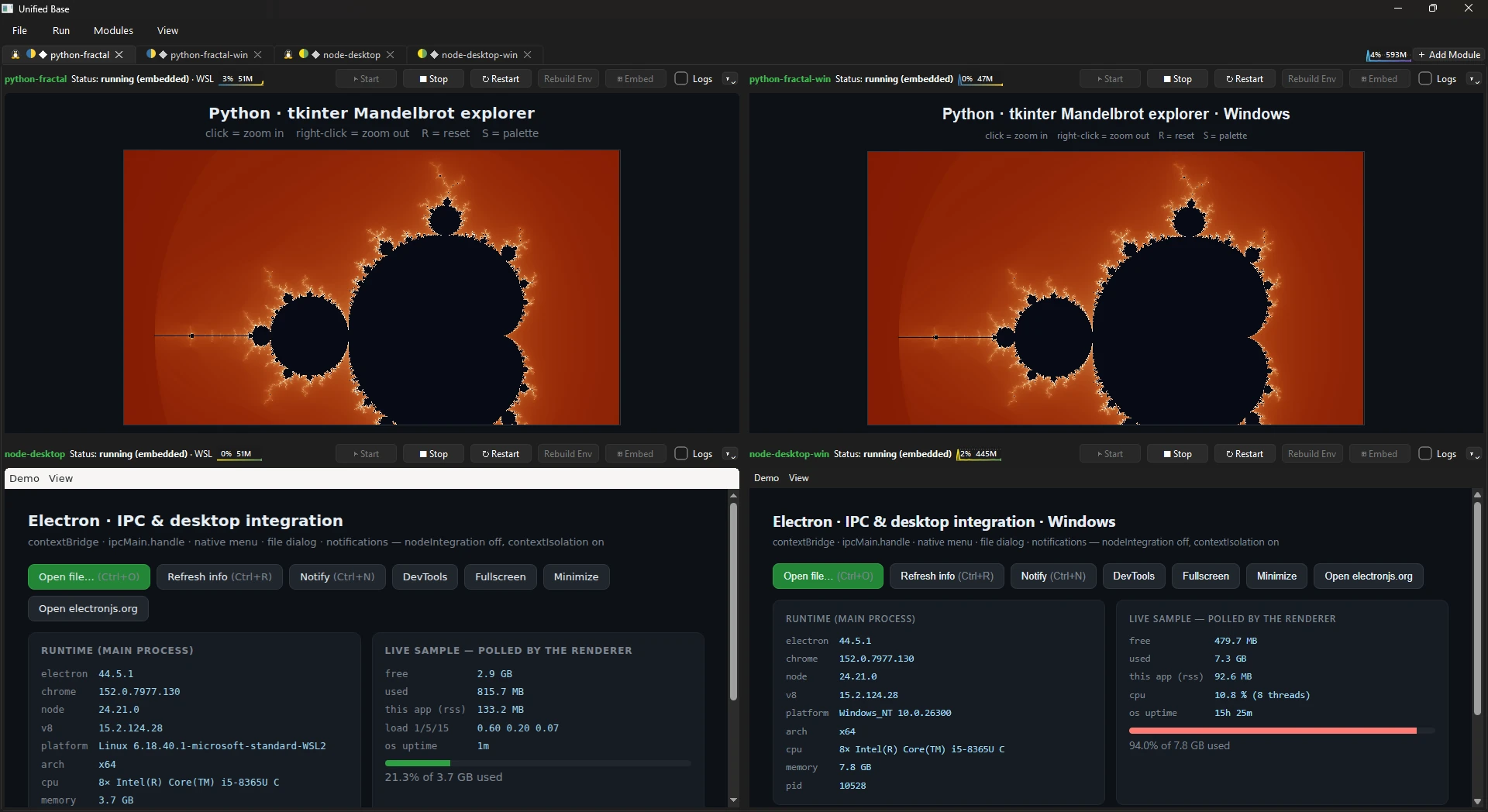 Windows
  Linux
Linux 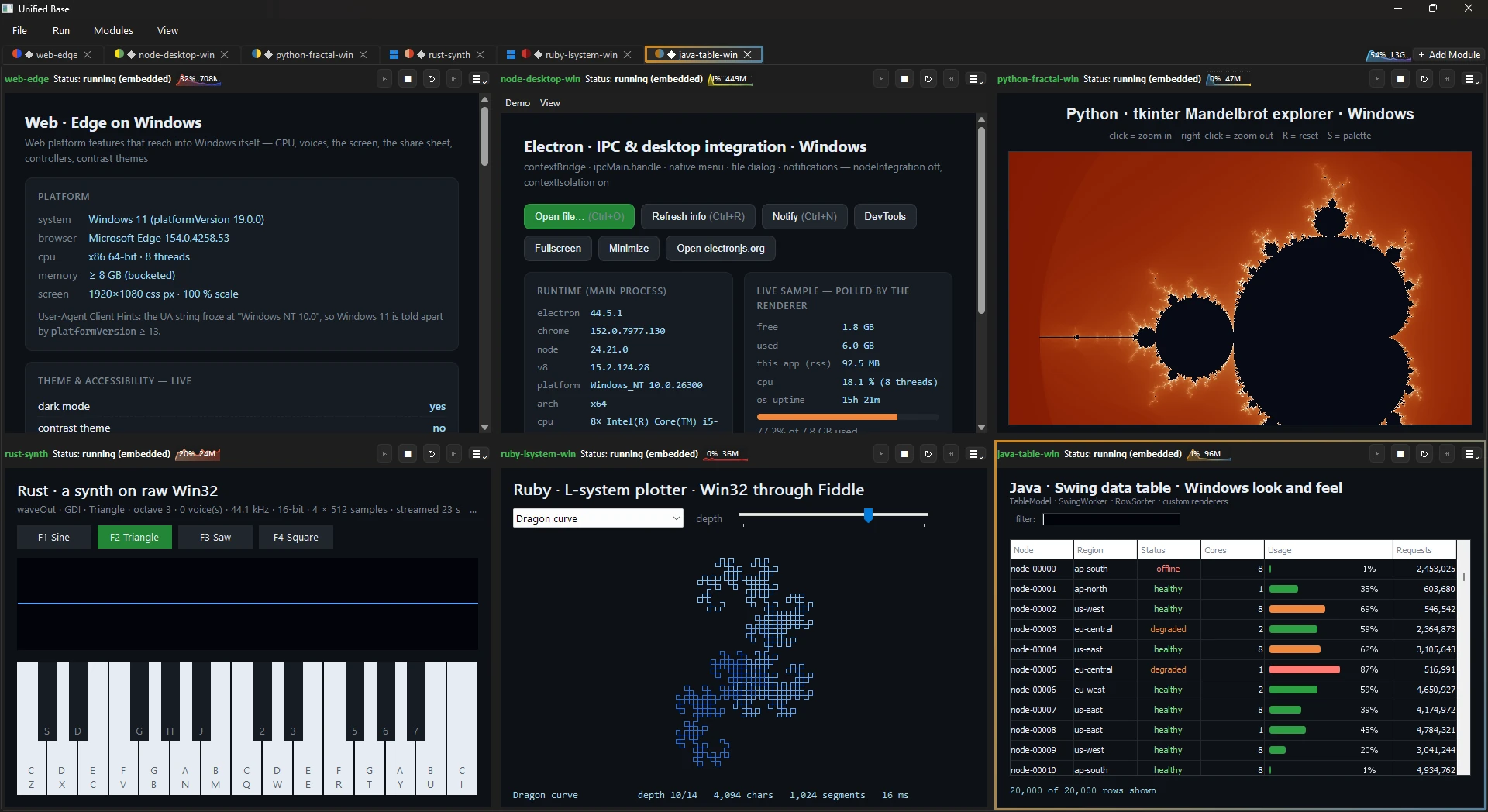 Windows
 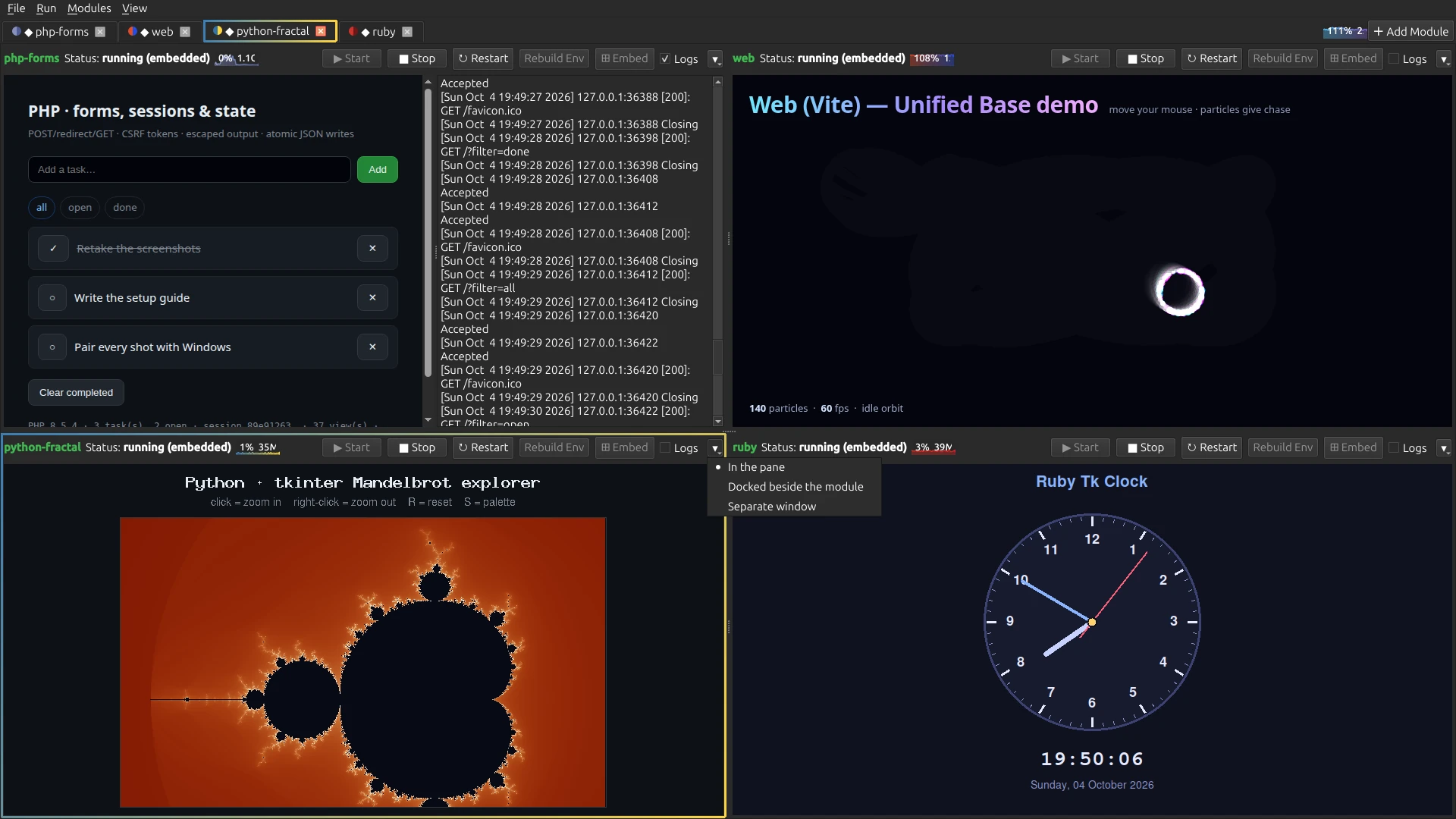 Linux
Linux 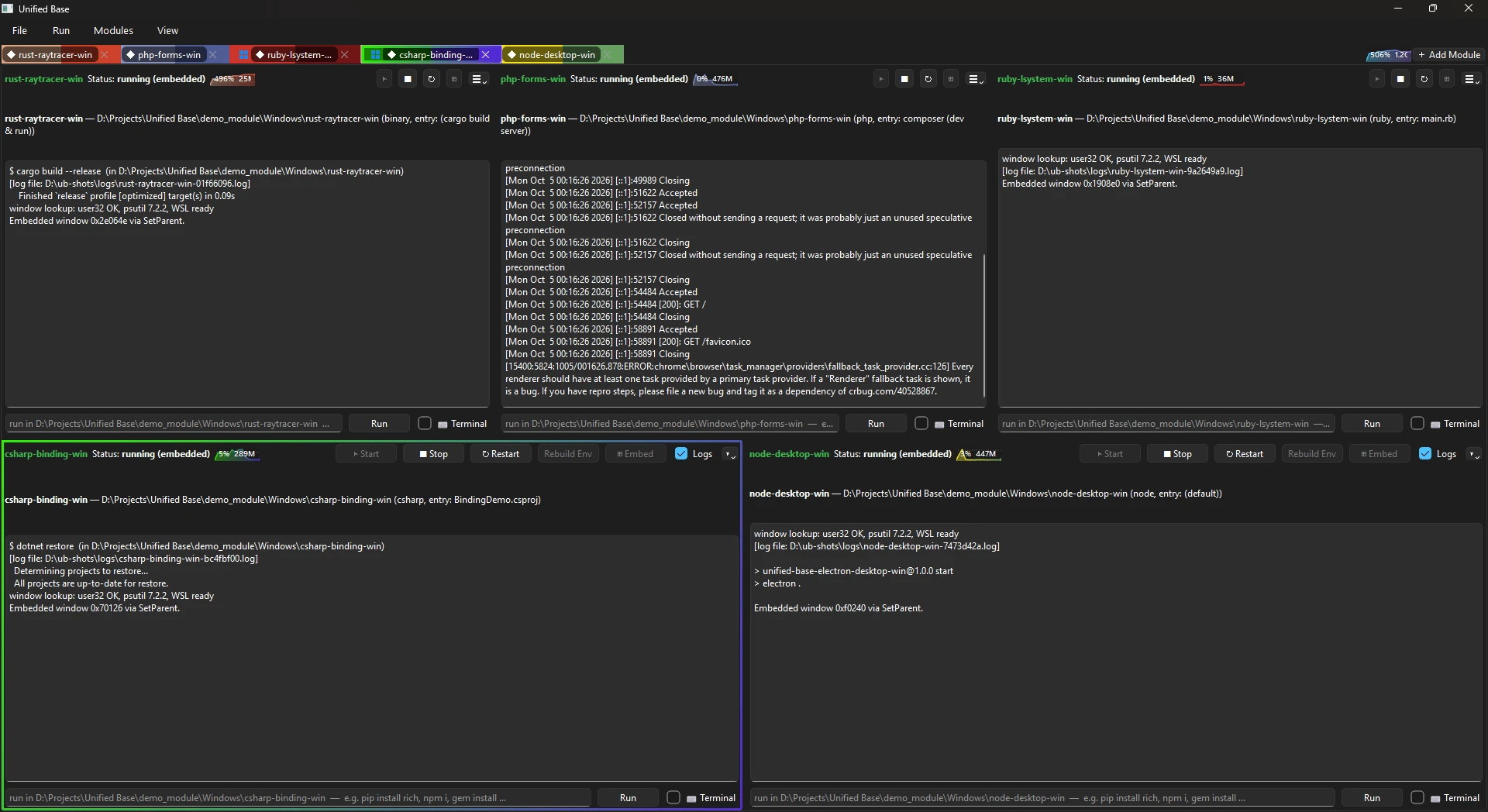 Windows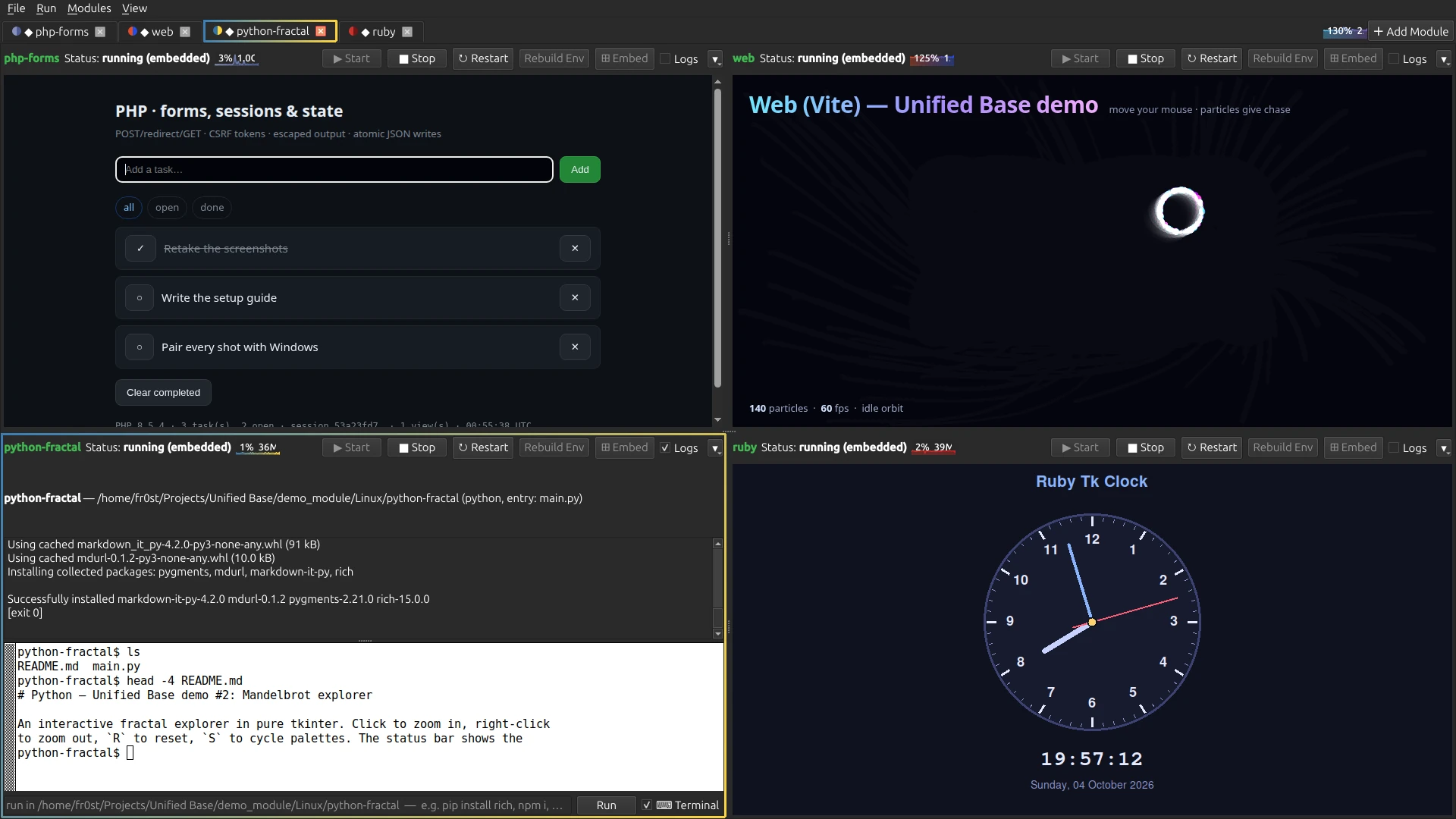
 Linux
Linux 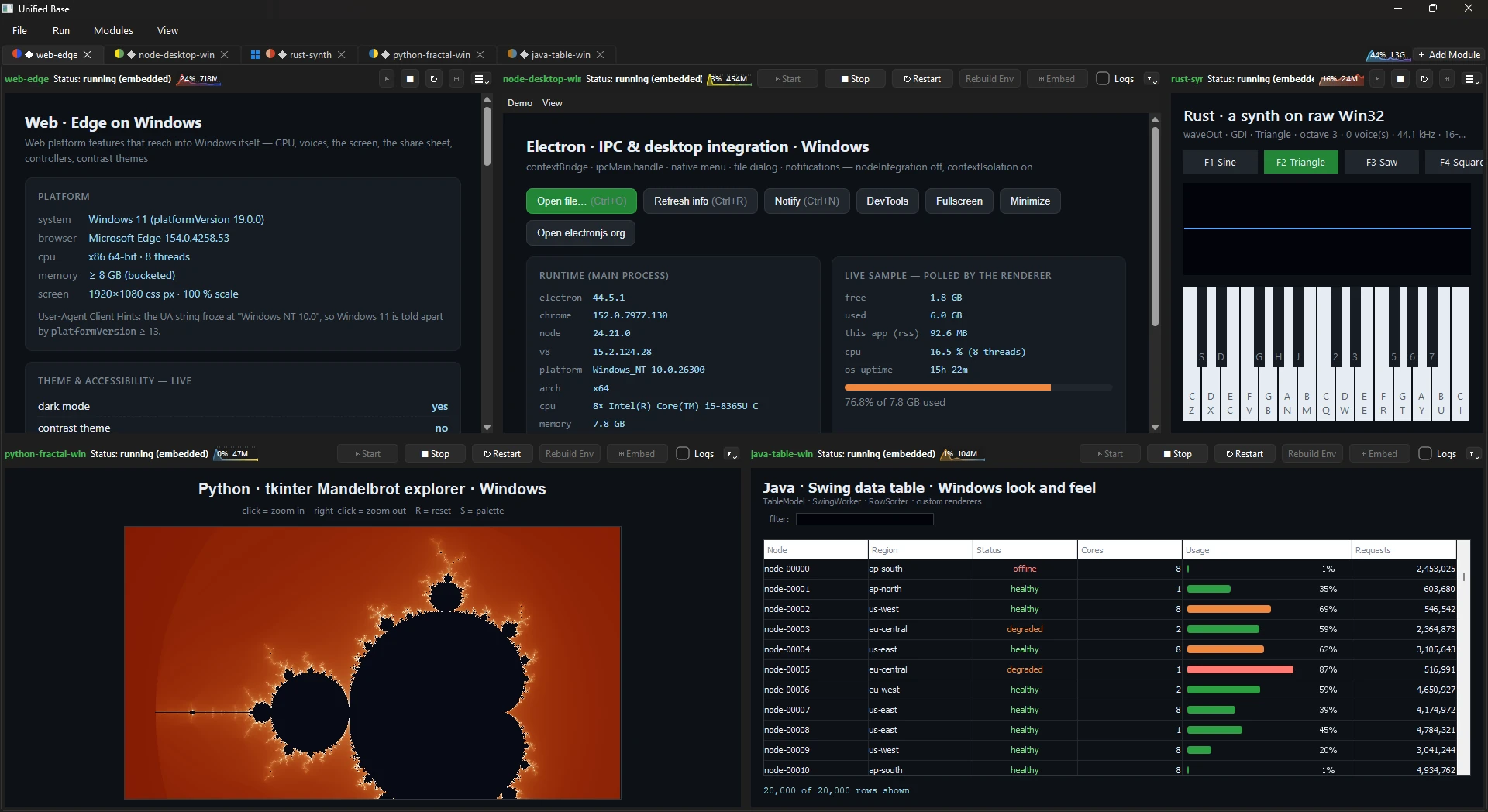 Windows
  Linux
Linux 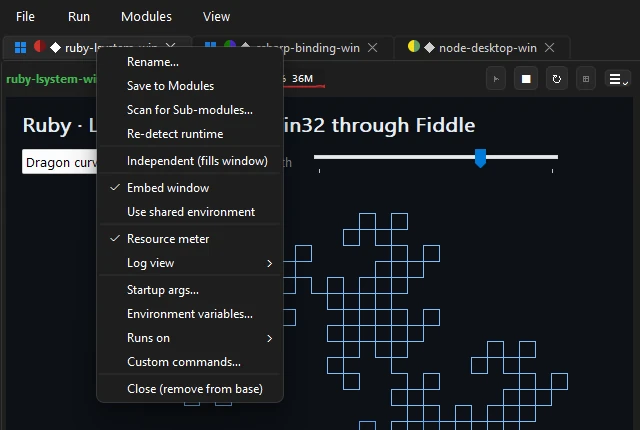 Windows
  Linux
Linux 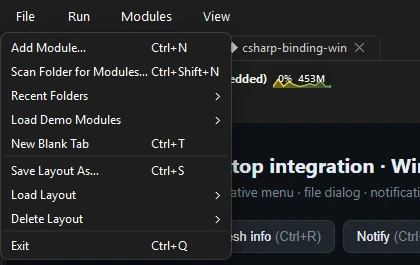 Windows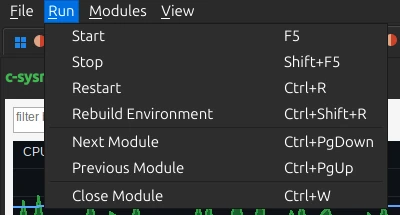
 Linux
Linux 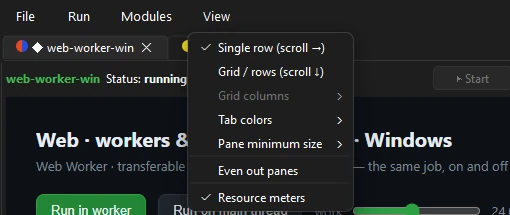 Windows
 Getting hold of it
Free and open source, under the MIT licence. Each download carries its own Python and Qt, so there is nothing to install first, and it installs for your user only: no admin password, no root. The Windows installer is not code-signed yet, so SmartScreen may stop it the first time — More info, then Run anyway.
- Download for WindowsWindows 10 1809+ or 11
- Download for LinuxMint 21+, Ubuntu 22.04+, Debian 12+
- Source codeGitHub
- Questions and feedbackGitHub Discussions