
Software / Unified Base / Guide
Unified Base — Setup Guide
Most of Unified Base explains itself: add a folder, press Start. The part that does not is crossing operating systems — Windows programs on Linux through Wine, Linux programs on Windows through WSL. Wine downloads itself; WSL takes a one-time install on Windows. That is all here, along with the rest.
Installing and running it
The installers carry their own Python and Qt, so nothing needs to be there first, and both install for your user only — no admin password, no root. Download them from the Unified Base page or the project’s GitHub releases.
Windows installer
Run UnifiedBase-windows-x64-setup.exe. It is not code-signed
yet, so SmartScreen may say Windows protected your PC: click
More info, then Run anyway. It goes to
%LOCALAPPDATA%\Programs\Unified Base and puts a Unified Base
folder on the Start menu: the app, its self-test, Set Up Linux
Programs (WSL) and the Read Me. Uninstall it from Settings ▸ Apps;
it asks before deleting your modules and settings.
Linux package
For Mint 21, Ubuntu 22.04, Debian 12 or newer. Extract
UnifiedBase-linux-x86_64.tar.gz and double-click
Install Unified Base — the file manager may ask you to
trust it first — or run ./install.sh in a terminal. It
installs to ~/.local, adds Unified Base to the menu under
Development and a unified-base command, and checks it starts
before it says it is done. Uninstall Unified Base in the
same folder removes it and leaves your modules and settings alone.
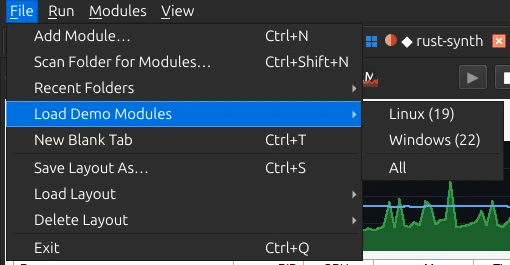
Either way, File ▸ Load Demo Modules is the quickest way to see it work.
From source, on Linux
From the Unified Base folder, run ./run.sh. The first run
makes its own Python environment in .venv and installs PySide6
and python-xlib into it — user-level pip, nothing system-wide. Embedding
needs X11 window ids, so on a Wayland desktop it runs itself, and every
module, through XWayland automatically.
From source, on Windows
Double-click run.bat. It needs Windows 10 version 1809 or
later (or Windows 11) and Python 3. If Python is missing:
winget install -e --id Python.Python.3.13
The first run makes .venv and installs PySide6 and psutil, then
starts in a console window that hides itself.
Check a new machine
Unified Base Self-Test on the Start menu,
unified-base --selftest on Linux, or
./run.sh --selftest / run.bat --selftest from
source opens
a small window, finds it, embeds it, stops it, and reports whether Wine,
WSL and a browser are there, and for each language whether it is
fetched, already on the system, or will download on first use. Run it
once on any machine you are setting up; it tells you what the rest of
this guide will need.
Adding modules
- File ▸ Add Module… (or the + button) — pick a project folder. Unified Base works out the runtime, asks if more than one fits, then asks which entry to launch when there is a choice: a script, an npm script, a build target, a jar.
- File ▸ Scan Folder for Modules… — every subfolder it recognises becomes a tab, stopped, ready to start when you want it.
- File ▸ Recent Folders — the folders you have added from before.
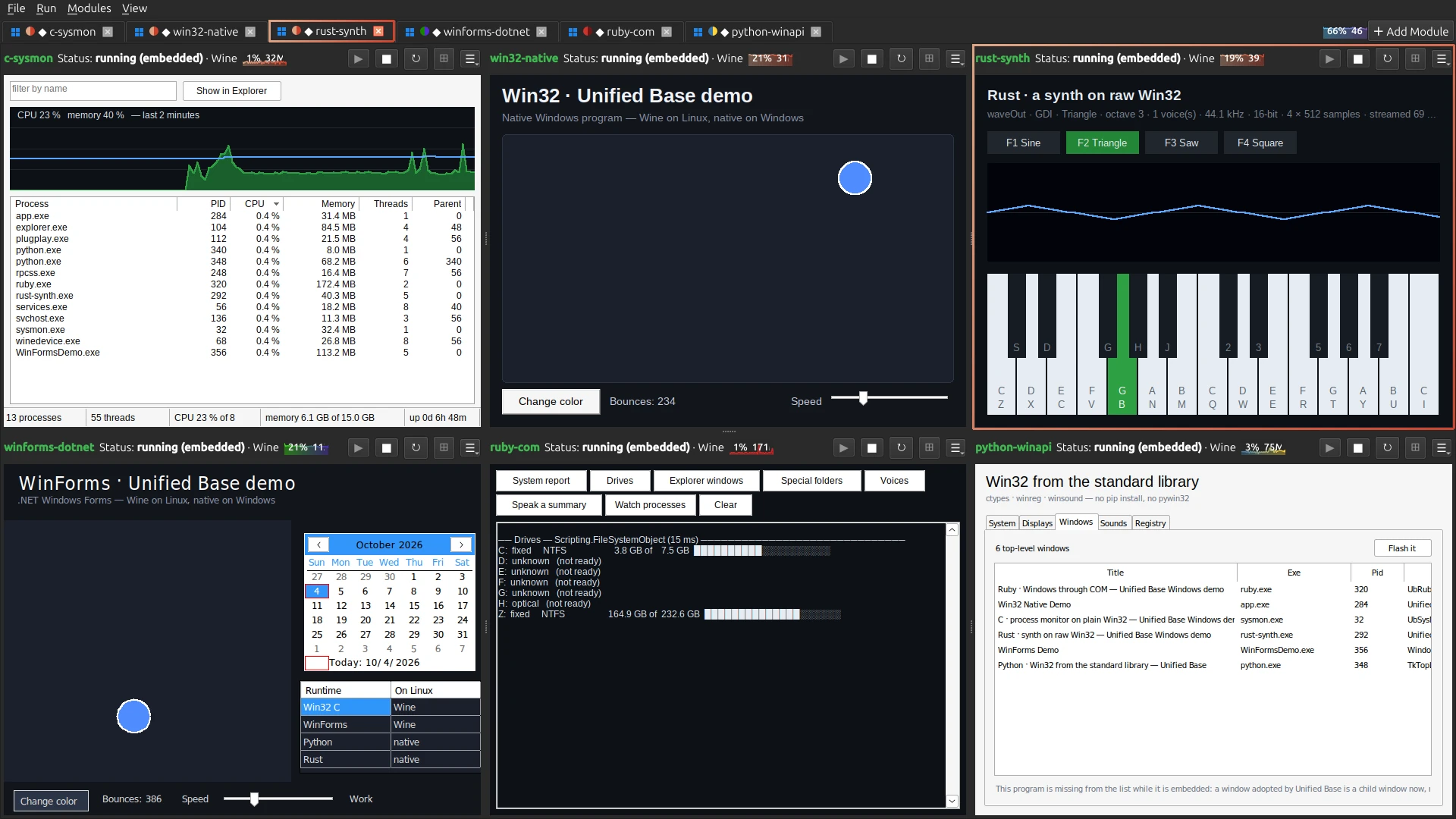
- File ▸ Load Demo Modules — forty-one demo programs, grouped by the operating system they were written for. Load Linux, Windows or All. The Windows group has a twin of one Linux demo per language, for comparing the two, and others that show off Windows itself.
- File ▸ New Blank Tab — an empty project folder with a terminal open in it, for starting something new. When it has code in it, right-click the tab ▸ Re-detect runtime.
A Python module that ships its own venv (.venv,
venv or env) runs from that, untouched.
Otherwise it gets a private one under .unified_base/envs,
with dependencies from its requirements files, its pyproject, and a scan
of the modules it actually imports.
Languages it gets for you
The first start of a module gets its language when the machine lacks it, or has one older than the project needs: Node.js 24, the .NET 10 SDK, Java 25 with Maven, and Rust (through rustup) on both systems; on Windows also Ruby 3.4 and PHP 8.4; on Linux, for Windows programs, Wine 11. Each downloads once into your own folder — no password, no admin prompt — and every module uses it from then on. The log says why it is fetching (“node here is 12.22, older than the 22.12+ it needs”), and each download is pinned and checked against its SHA-256 before it is used. The first .NET (229 MB on Linux, 287 MB on Windows) or Java (135 MB) module takes a few minutes; later ones start straight away.
“Older than it needs” comes from the project itself where it says: its .NET target, its Java release, its Node engine, its Rust version. This matters on long-term-support releases: Linux Mint 21 ships Node 12, Rust 1.75 and Java 11, which today’s Electron, crates and Maven builds refuse. Rust on Windows uses its GNU toolchain, which brings its own linker, so Visual Studio is not needed.
A few tools still come from the system. On Linux, PHP, Ruby and Docker come from your package manager: a module that needs one shows ⤓ Install in its header, behind the system’s own password prompt. On Windows, Docker Desktop, Go, CMake and make install through winget the same way (Windows asks in its own prompt), and the new tool is found without restarting anything. Where there is no package — Gradle, Composer — the log names the download page instead.
Unified Base never asks for your password and never types one. When an install needs admin rights, it is your system’s own prompt that asks.
Runs on, and the mark on the tab
Every module records what it needs, and the launcher works out how to provide it on the machine it is on:
| Module needs | On Linux | On Windows |
|---|---|---|
| Runs anywhere — most source projects | native | native |
| Windows only — an .exe, a WinForms or WPF project | Wine | native |
| Linux only — an ELF binary, a GTK or X11 program | native | WSL |
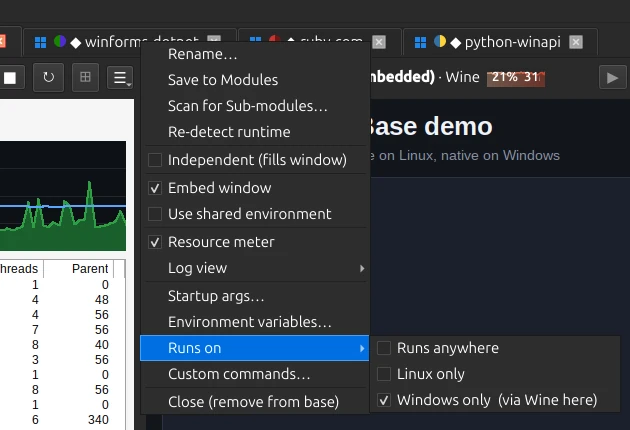
Detection only trusts strong evidence: a binary’s own header, a project targeting Windows, an import that exists only on one OS. When it guesses wrong, right-click the tab ▸ Runs on. The choice is saved with the module, so the same module does the right thing when it is opened on the other OS.
A module tied to one OS shows a small mark on its tab — Windows’ four panes or a Tux — and hovering it says how it runs here, for example “Windows app · runs through Wine here”. A module that runs anywhere gets no mark.
Windows programs on Linux (Wine)
Nothing to install. Without Wine 10 or newer on the machine, the first
Windows module you start downloads Wine 11 (70 MB, a portable build
that needs no 32-bit libraries), then builds a
shared Wine prefix at ~/.unified_base/wine/default, which
takes a minute; every start after that is quick. Wine draws ordinary X11
windows, so Windows programs embed into panes the same way Linux ones do.
- Compiled programs build on Linux. A Windows-only .NET app is published for Windows by the Linux .NET SDK; a Windows-only Rust crate is cross-compiled with MinGW. Wine runs the result.
- Python, Java and Ruby get their Windows build. A Windows-only program in one of those runs on that language’s official Windows release, which the first start downloads into the prefix: Python 3.12 (26 MB), Temurin JDK 25 (135 MB; Maven still builds the jar on Linux) and Ruby 3.4 (20 MB, plus Microsoft’s C runtime, 31 MB). Each download is pinned and checked against its SHA-256 before it runs.
- A prefix of its own. Set
WINEPREFIXin a module’s Environment variables to keep it apart from the shared one. - Launchers are followed. Wine detaches whatever a Windows program starts — the app a .bat runs, the game a launcher opens — so every launch is tagged, and Stop and the meters still reach all of it.
Windows-only Node.js and PHP programs, and Windows containers, are the exceptions: the tab explains why it cannot run them rather than trying.
Linux programs on Windows (WSL)
Set Up Linux Programs (WSL) on the Start menu — also
behind a Linux module’s Set up WSL button — does the
three steps below, asking before each change: WSL and Ubuntu, what Linux
modules need inside it (Python’s venv and Tk, gcc for Rust, the GUI
libraries Electron, Java and Avalonia load), VcXsrv, and the
.wslconfig line. To do it by hand instead:
1. Install WSL
In an administrator PowerShell, then restart when it asks:
wsl --installSetup steps, the launch and the command bar all run inside the default distro, so a Linux module’s toolchains have to exist inside it. Node.js, .NET, Java with Maven, and Rust fetch themselves there, as they do on Linux. Ubuntu ships without a few things they lean on:
sudo apt install python3-venv python3-tk gcc
That one is run in the Linux terminal, not PowerShell. A module that
needs anything else says which apt line to run.
2. An X server, so the windows can be embedded
Windows’ own Linux display, WSLg, draws its windows in a way that cannot be taken into another program. VcXsrv can:
winget install marha.VcXsrvStart it with these options — a shortcut in your Startup folder does it at sign-in:
vcxsrv.exe :0 -multiwindow -clipboard -wgl -listen tcp3. Let WSL reach it
Add this to %USERPROFILE%\.wslconfig (create the file if there is none), then run wsl --shutdown once:
[wsl2]
networkingMode=mirrored
With both in place, Linux programs open on VcXsrv and embed like any other window. Without them they still run, through WSLg, in their own windows beside the launcher. VcXsrv draws in software, so a full-window animation costs about one CPU core.
A module on a removable drive works too: Unified Base mounts the drive inside WSL the first time it is needed, because WSL only mounts fixed drives by itself.
Arranging the panes
Every module that is not Independent shares the main area, in one of two arrangements from the View menu:
- Single row (scroll →) — a resizable row. Drag the handles to size panes; past the window’s width it scrolls sideways instead of squashing them.
- Grid / rows (scroll ↓) — panes wrap into rows. Grid columns sets a fixed count, or Auto-fit.
Pane minimum size — Small (400×300), Medium (520×380) or Large (760×560) — is how small a pane may get before the view scrolls. Even out panes puts them back to equal widths. Tab colors paints tabs plain, with a small chip per language, or entirely in the language’s colours. Resource meters turns the CPU and memory strips on or off.
A narrow pane folds its header: first the buttons lose their words and keep their symbols, then everything that will not fit moves into a ☰ menu at the end.
Logs, the command bar and the terminal
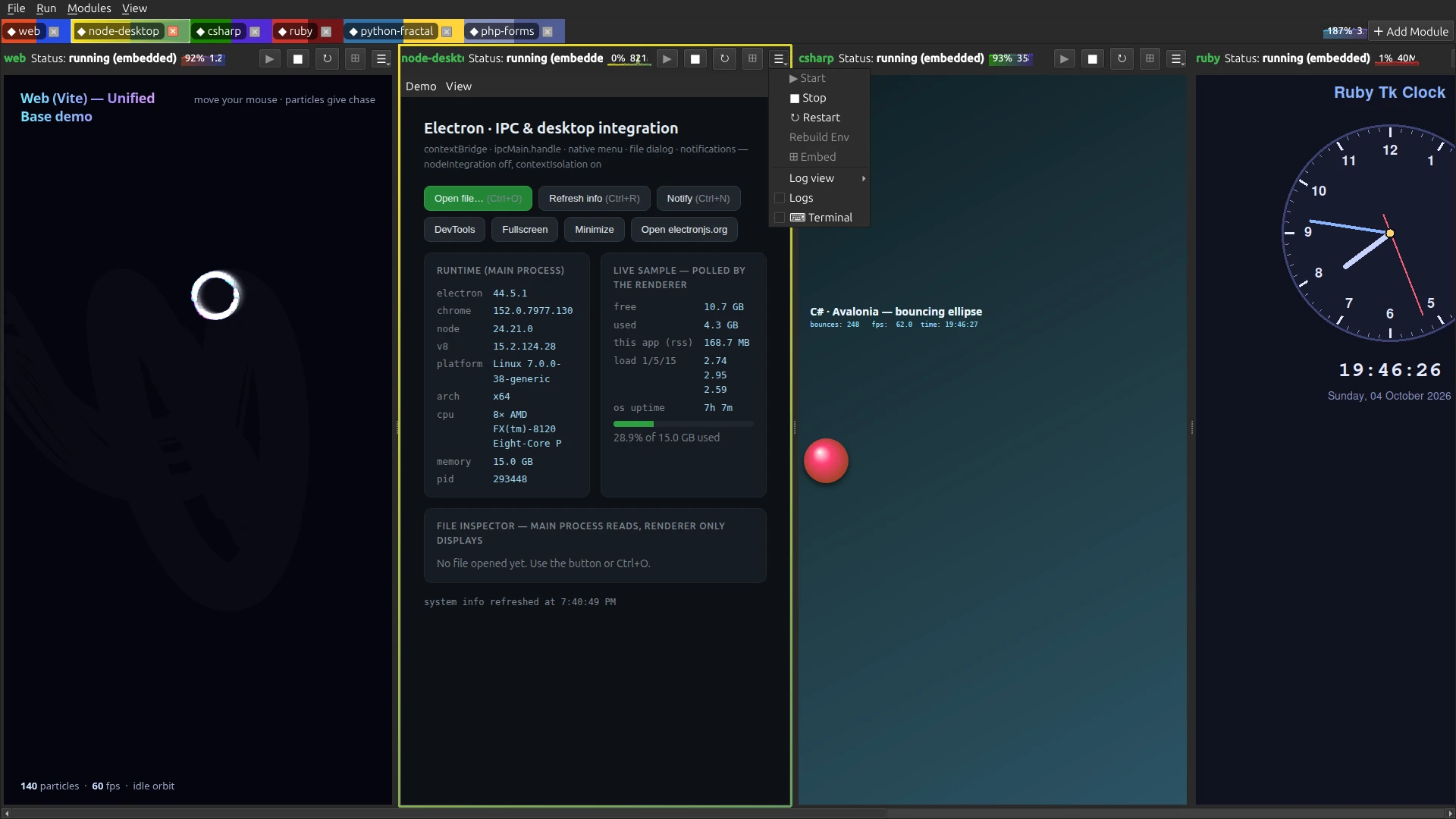
Logs in a pane’s header shows that module’s output —
setup, build, its own stdout and stderr. The ▾ beside it
decides where: In the pane (the log takes over the pane),
Docked beside the module, or Separate window. Each
module’s log is also written to .unified_base/logs.
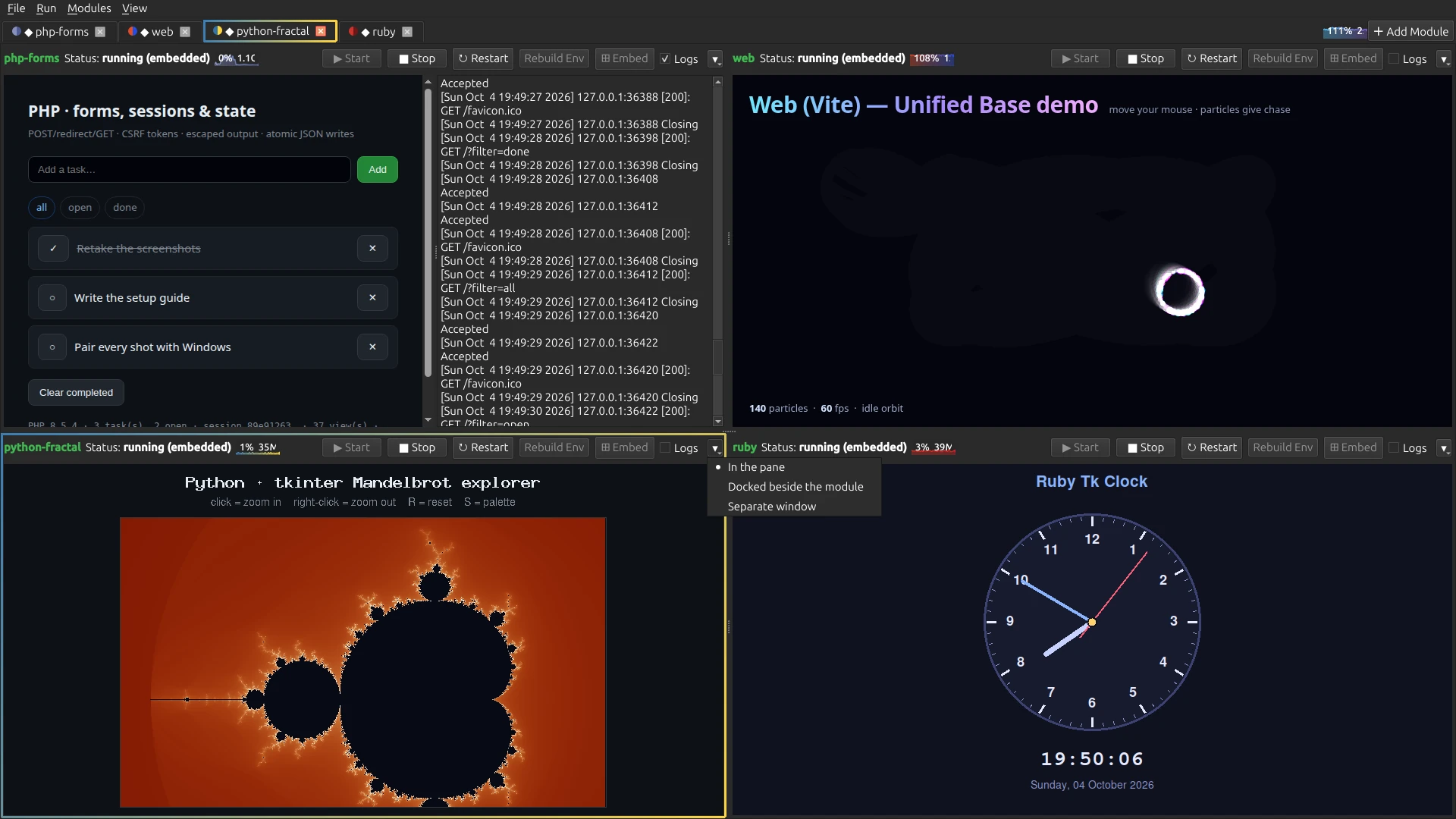
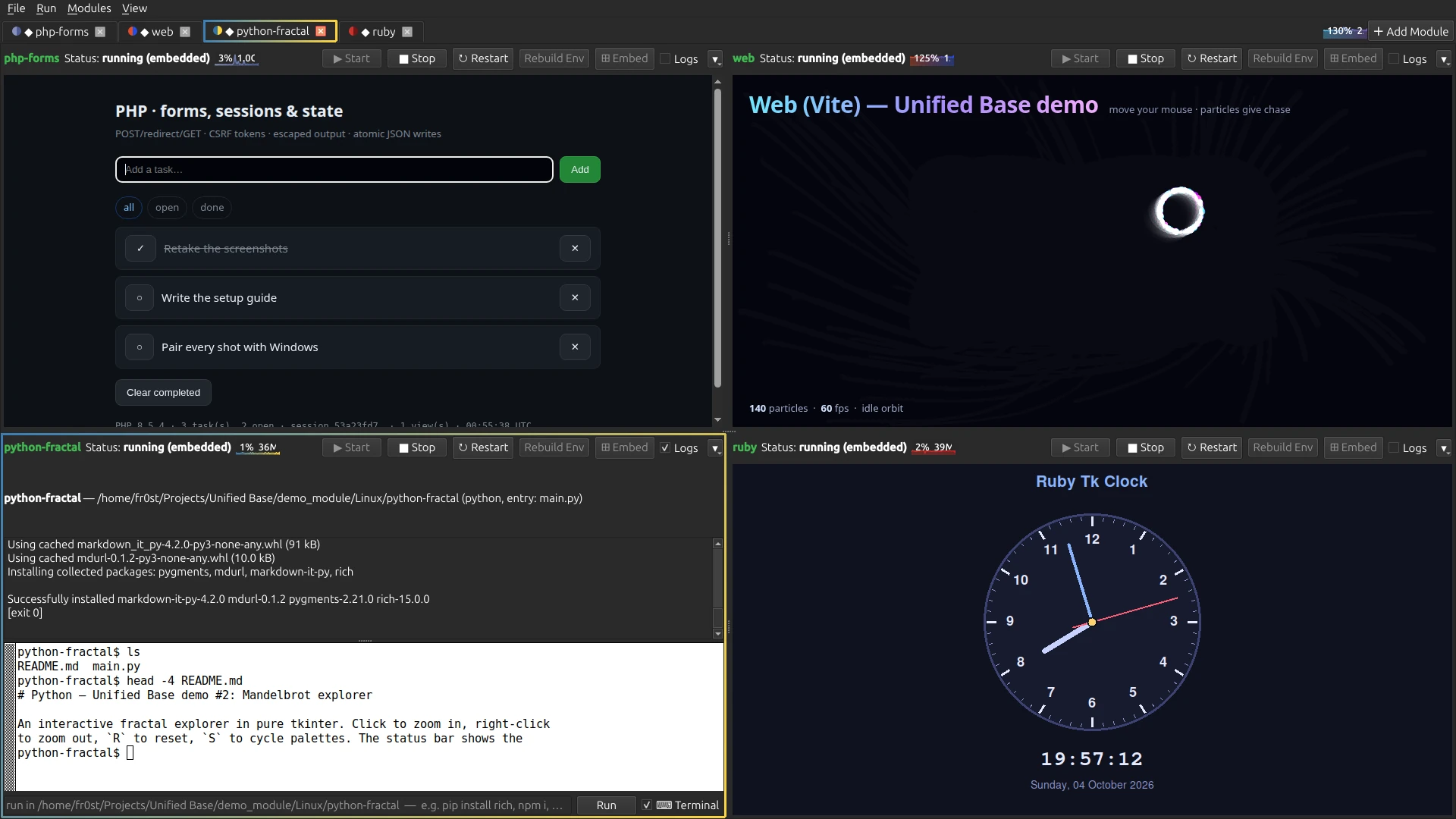
Under the log is the command bar: type a command, press
Enter, and it runs once in the module’s folder — through its bridge, so a
Linux module’s command runs in WSL on Windows. For a Python module running
natively it runs in the module’s own venv, so pip install
rich lands where the module will find it. Pipes and && work; programs
that need a real terminal do not.
For those, tick Terminal: a real one opens in the same
folder, embedded under the log — xterm on Linux, the Windows console on
Windows. Typing exit folds it away; ticking it again gives a
fresh one. It opens a plain shell, so activate the module’s venv in it
yourself if you need it.
Per-module settings
Right-click a tab:
| Entry | What it does |
|---|---|
| Rename… | The name on the tab. Double-clicking the tab does the same. |
| Save to Modules | Keep it in the library, so the Modules menu opens it in one click next time. |
| Scan for Sub-modules… | The other runnable entries in its folder — Python files with a __main__ guard, extra package.json scripts. Tick the ones you want and each opens as its own tab, sharing this one’s runtime and settings. |
| Re-detect runtime | Look at the folder again. For a project that has changed shape, or a blank tab you have started filling. |
| Independent (fills window) | Take the whole window, with the tab bar still there to switch back. |
| Embed window | Off, and the module always opens in its own window, with no wait for an embed. |
| Use shared environment | Run from one shared venv rather than a private one — handy when several modules need the same heavy dependencies. Takes effect on the next start. |
| Resource meter | The CPU and memory strip in this pane’s header. |
| Log view | In the pane, docked beside the module, or a separate window. |
| Startup args… | Appended to the command line. For npm they are passed through to the script, not swallowed by npm. |
| Environment variables… | Set for every launch. EXTRA_PIP_PACKAGES adds pip packages the import scan missed. WINEPREFIX gives a Windows module a Wine prefix of its own. |
| Runs on | Runs anywhere, Linux only, or Windows only — with how that is carried out on this machine. |
| Custom commands… | A setup command and a run command of your own, for anything the detector does not know. |
| Close (remove from base) | Removes the tab. The project folder and its environment stay on disk. |
Rebuild Env in the header wipes the module’s environment
— the venv, node_modules, target,
build — and sets it up again. ⊞ Embed
retries pulling a running module’s window into its tab.
The library and layouts
Open tabs come back the next time you start Unified Base. Beyond that:
- Save to Modules (right-click a tab) keeps a module in the library; the Modules menu opens it in one click, and Remove Saved Module takes it out again.
- Modules ▸ Close All Modules… (Ctrl+Shift+W) clears every tab at once, after one question — handy after loading the demos. Saved modules and layouts stay.
- File ▸ Save Layout As… stores the whole set of tabs — order and names included — under a name of your choosing. Load Layout restores and starts them all; Delete Layout removes one.
Keyboard reference
The Run keys act on the picked tab, not on whatever pane the mouse is over. While you are typing into a module’s own window the keys are that program’s; click the tab bar to hand them back.
| Key | Action |
|---|---|
| F5 | Start the picked module |
| Shift+F5 | Stop it — during setup, this cancels the setup |
| Ctrl+R | Restart it |
| Ctrl+Shift+R | Rebuild its environment from scratch (asks first if it is running) |
| Ctrl+PgDown · Ctrl+PgUp | Next or previous module |
| Ctrl+1 … Ctrl+9 | Jump straight to that module |
| Ctrl+W | Close the module (its folder and environment stay on disk) |
| Ctrl+Shift+W | Close All Modules… — every tab at once, after one question |
| Ctrl+N | Add Module… |
| Ctrl+Shift+N | Scan Folder for Modules… |
| Ctrl+T | New Blank Tab |
| Ctrl+S | Save Layout As… |
| Ctrl+Q | Exit |
| Double-click a tab | Rename it |
Where your files live
Everything Unified Base keeps is in one folder in your home:
~/.unified_base on Linux,
%USERPROFILE%\.unified_base on Windows. Your projects stay
where they are; it only reads them and builds in them.
| In .unified_base | What it is |
|---|---|
modules.json | The open tabs and every module’s settings |
library.json | Modules saved to the library |
layouts.json | Saved layouts |
prefs.json | View settings, window position, recent folders |
envs/ | Python venvs it made, one per module, plus _shared |
logs/ | One log file per module |
wine/ | The shared Wine prefix (Linux) |
toolchains/ | The languages it fetched for modules (Rust goes to ~/.cargo) |
downloads/ | Downloads: installers it keeps, such as the Windows builds Wine modules use |
unified_base.log | Anything that went wrong inside the launcher itself |
When something goes wrong
- A module’s window opened outside the tab.
- Press ⊞ Embed to try again. A module that never produces a window it can take — within about 40 seconds — gets a control panel in its tab instead and runs in its own window.
- An Electron module quits at once, and the log talks about a sandbox.
- On Ubuntu and other distributions that restrict unprivileged user namespaces, the Electron that npm installs cannot start its sandbox. The log gives the commands that fix it with the sandbox kept on; ⚑ Retry without sandbox in the header starts it without one instead.
- A Linux module on Windows opens in its own window.
- VcXsrv is not running, or
networkingMode=mirroredis not in.wslconfig— see Linux programs on Windows. - A Linux module on Windows cannot find a tool.
- Toolchains have to be inside the WSL distro, not on Windows. Node.js,
.NET, Java, Maven and Rust fetch themselves there; for anything else
the log says which
aptline it needs. Rust also needs gcc, which Set Up Linux Programs (WSL) installs. - A Windows program on Linux shows boxes instead of text.
- Java programs under Wine look for Arial, Times New Roman and Courier New, which a fresh Wine prefix does not have, and fall back to symbol fonts. It is a known gap in this beta; WinForms, Win32, Python and Ruby programs are not affected.
- A WPF program closes as soon as it starts under Wine.
- WPF does not run under Wine yet. WinForms and plain Win32 programs do.
- A Docker module fails to build.
- The log says why in plain words — the engine is not running, your account is not in the docker group, or the image is the wrong kind of container for the engine — and what to do about it.
- Something in the launcher itself went wrong.
- It keeps running and writes the error to
.unified_base/unified_base.log. That file, and the self-test’s output, are the things to send if you report a problem. Questions and ideas go to Discussions.